
The Records page gathers everything your team has logged into one list, across every place and record type. From there you find the entries you need, read one in full beside the list, and step on to the next without losing your place.
The list
The list shows what your team has logged, most recent at the top, under a row for each day — Today, Yesterday, then the date. Each row gives the entry's name, its status, its record type, where it is filed, who logged it and the time. A place reads smallest first, with the place above it: "Ward 3 East, Main building". Drafts stay with whoever is writing them and don't appear here.
An entry with no name of its own is called by its record type and the day it was logged, such as "Shift report, 30 Oct".
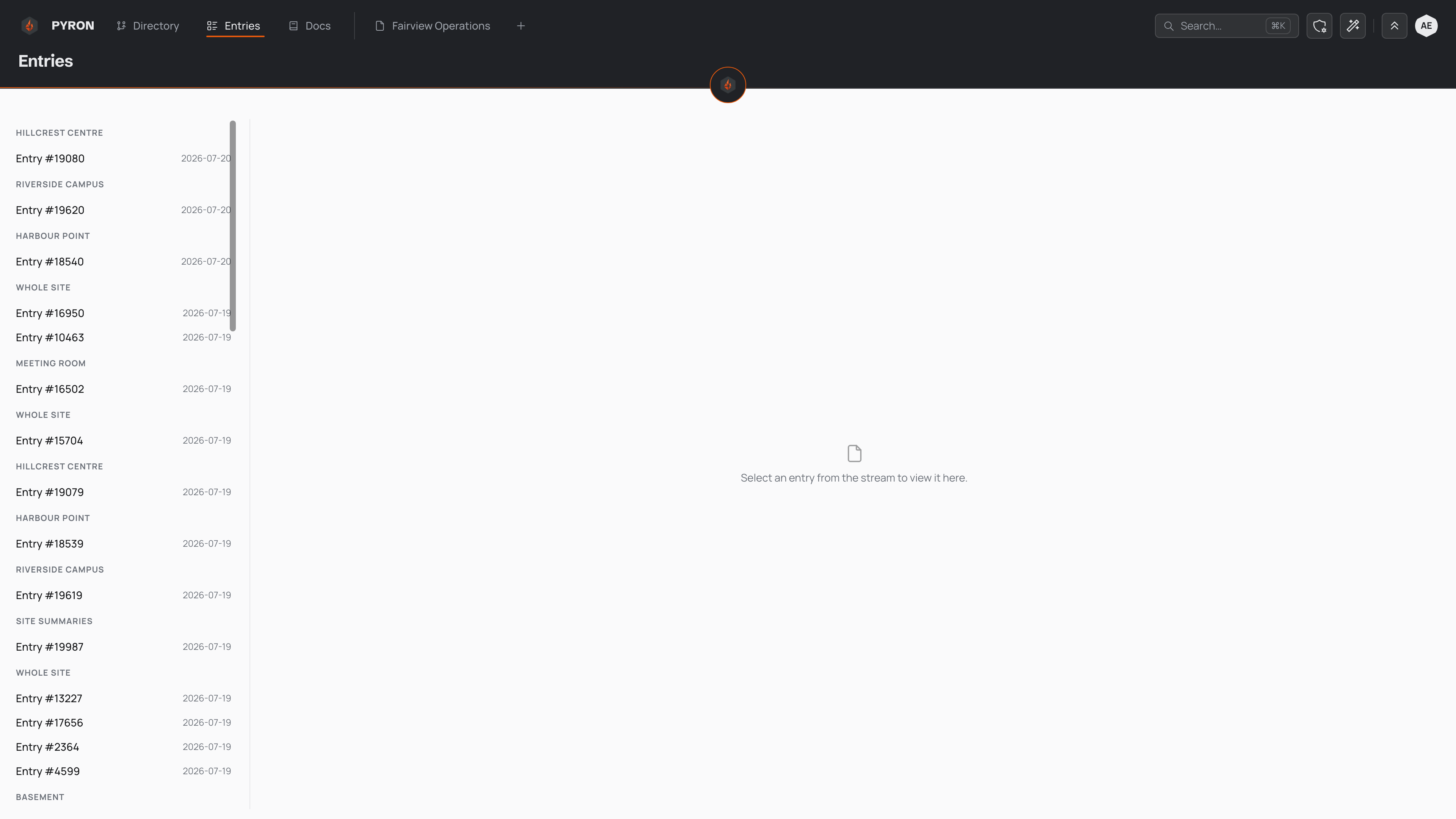
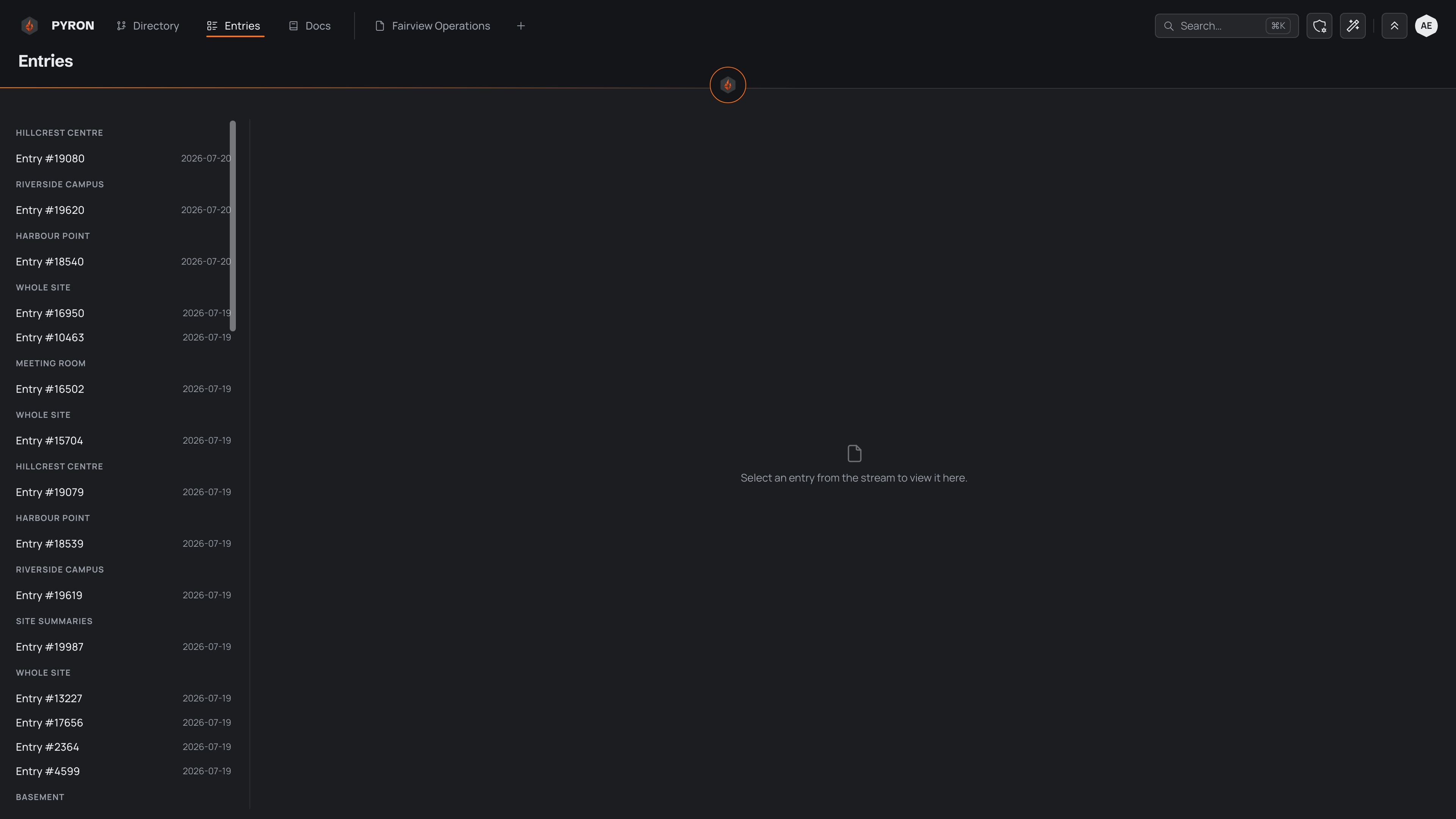
Finding entries
Above the list sit two ways to narrow it down:
- Search keeps the entries whose details contain the words you type.
- Filter keeps the entries at one place or anywhere beneath it, of one record type, or not finished. Each filter shows as a chip you can change or remove.
They work together, and each one looks through every entry you can see, not only the ones already on screen, so the list starts again from the newest match and says how many it holds. Press Logged to read the oldest first. To search across the whole app rather than entries alone, see searching across the app.
To keep a way of looking at the list, choose Save view from the View menu. A saved view is yours alone, and holds the filters, search, order and columns you set. Columns in the ⋯ menu shows and hides columns; drag a column by its name to move it.
Opening an entry
Select any row to open the entry in a panel beside the list. The row stays highlighted, so you keep your place, and the arrows at the top of the panel step to the entry above or below. That is how you work through a run of entries without losing your bearings. On a phone the entry takes the whole screen.
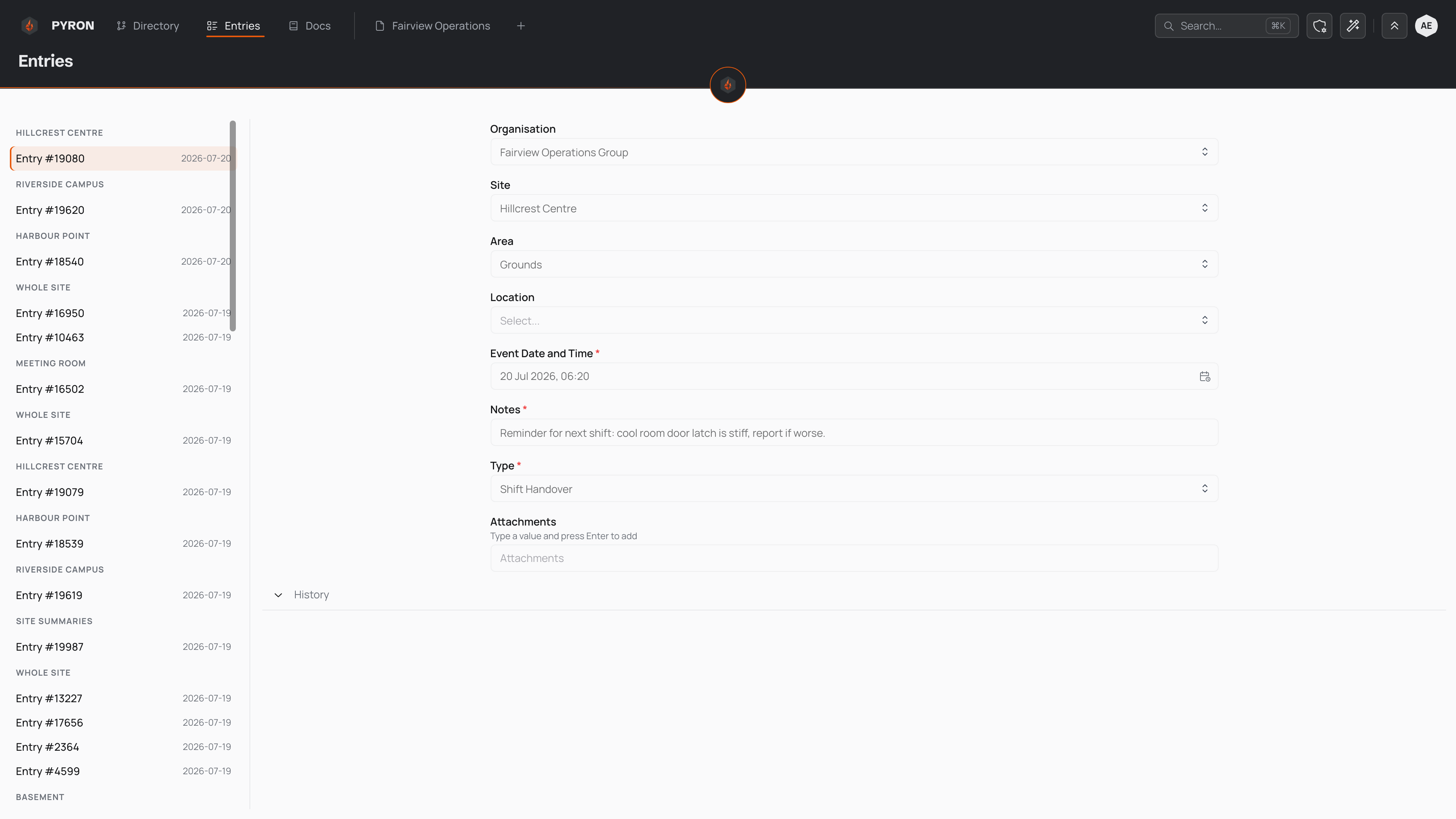
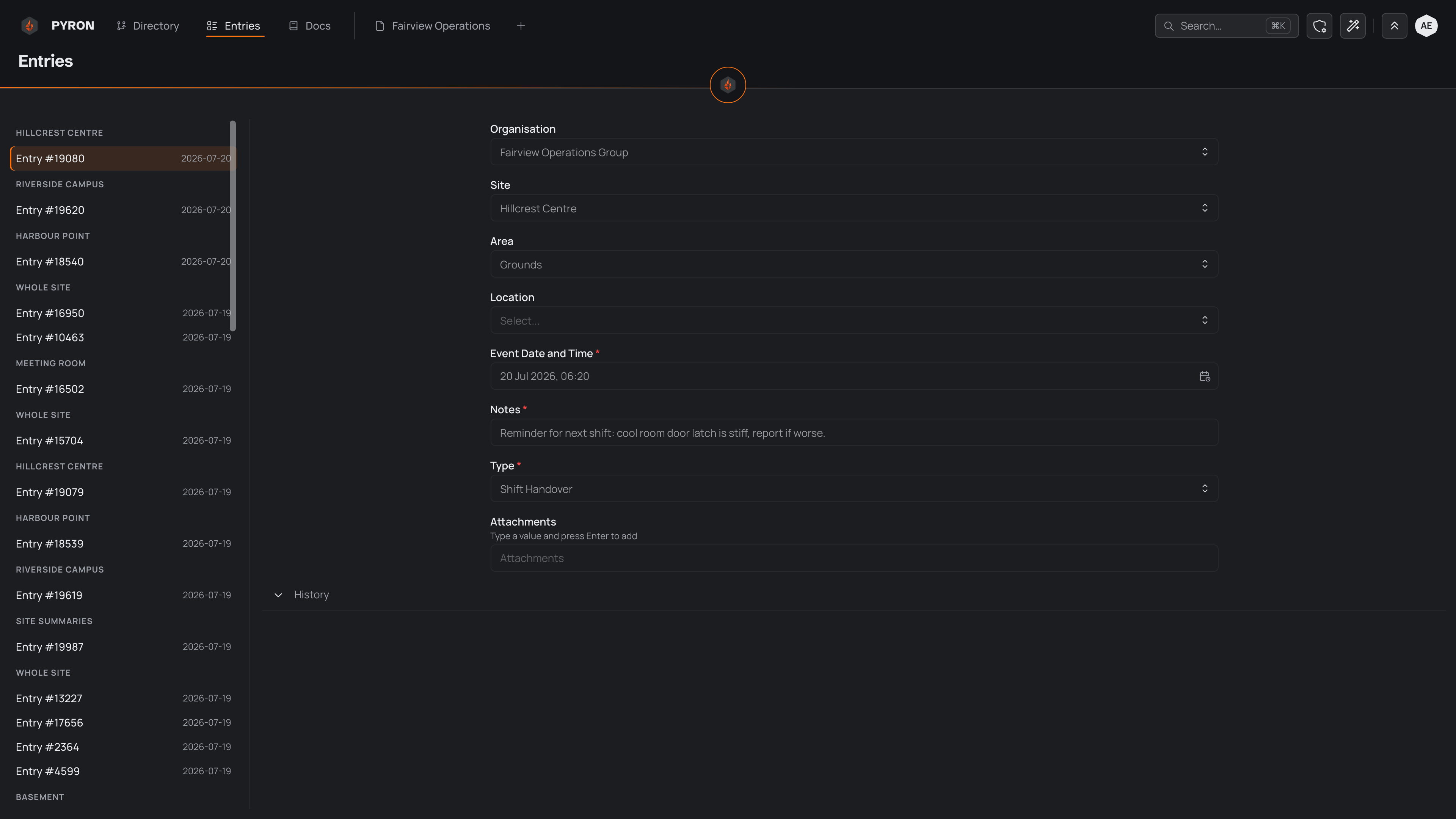
The panel opens with the entry's name, where it is filed, and who logged it and when. Beneath that come its status and the moves it can make next, then what was captured, field by field: each label with its value, a choice by its name, a person or a place by name. A field left empty reads "—". Its activity sits at the foot, with a box for comments.
The panel carries the entry's actions:
- Edit opens the entry as its form, if your role allows editing entries — see editing an entry.
- ⋯ holds Copy link, Open page, Email and Delete, as your role allows.
The same panel opens when you select a row in a list on a directory page. Logging an entry covers filling one in from start to finish.